

Contents
- Get to know the buttons
- Setting up the tripod and attachments
- Turn Spirit Talker Lite on and off
- Charge the battery
- Start a Spirit Talker session
- Use the main menu
- Use Yes / No mode
- Use Emoji mode
- Play Flappy Ghost
- Choose a voice
- Set the local time
- Find saved word sessions
- Connect to Wi-Fi
- Connect to ParaLink-Mesh
- Update firmware
- Troubleshooting
Get to know the buttons
With the screen facing you, the three front buttons are A (left), B (centre) and C (right). Press and release once for each menu action. The small red side power button is separate from these controls.
| Screen | A – left | B – centre | C – right |
|---|---|---|---|
| Spirit Talker | Stop and return to menu | Start / stop word session | Cycle speech volume, including mute |
| Main menu | Move up | Open highlighted item | Move down |
| Yes / No | Stop and return to menu | Start / stop responses | Switch two / four answers; stops an active run |
| Emoji | Stop and return to menu | Start / stop; stop restores neutral face | No assigned action |
| Flappy Ghost | Return to menu | Start / flap / play again | No assigned action |
| Settings | Return to menu | Open selected setting | Select next setting |
| Voice | Save and return to Settings | Save current voice | Next voice and spoken preview |
| Timezone | Save and return to Settings | Adjust by 30 minutes | Select + or – |
| BST | Save and return to Settings | Save current choice | Toggle Off / On and save |
| Firmware Update | Back / cancel | No assigned action | Install only when prompted |
Setting up the tripod and attachments
Watch the video below for a demonstration of setting up the tripod and attachments.
Turn Spirit Talker Lite on and off
- With power disconnected, insert the supplied microSD card. Keep its supplied licence and other files on the card.
- Press the red side power button once. Wait for the loading, licence and connection checks. Spirit Talker Lite normally opens on its stopped word screen. If charging, a charging screen may appear first.
- To switch off, stop the current mode with B or return to the menu with A. Disconnect USB, then quickly press the red side power button twice.
The device normally remains powered on while USB power is connected. Unplug the cable before using the double press to switch off.
Charge the battery
- Connect the device’s USB-C port to a suitable 5 V USB power source. Connecting USB power turns the device on.
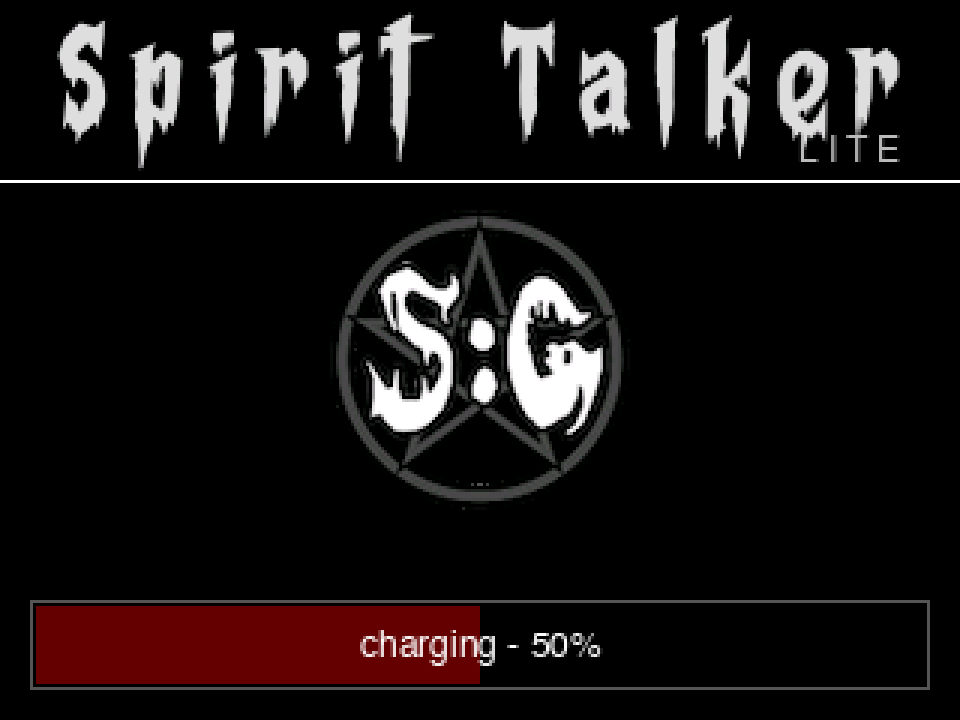
- If the charging screen appears, read the charging percentage in the bar at the bottom. At a reported full charge it shows charged – 100%.
- The charging screen can go black after about one minute. This does not mean the device has switched off. Press and release a front button to wake it. If it remains on the charging screen, press and release again to enter the app.
- To charge without running a session, leave the app stopped. You can use the app while USB power is connected.
- To switch off after charging, unplug USB and quickly press the red side power button twice.
Start a Spirit Talker session
- If you are in the menu, highlight Spirit Talker and press B.
- Press B on the word screen to start. The centre green circle becomes a red stop square and the scanner indicator moves.
- Wait for a word or phrase. The first response can take roughly 10 seconds to just over two minutes; response timing varies.
- Read the new response in the band beneath the title. It is spoken using the selected voice, unless the volume is muted. After about five seconds it joins the recent-word list below.
- Leave the session running for further responses, or press B to stop. Stopping clears the on-screen word list; recorded words remain in the session’s text log.
- Press A to stop and return to the menu.
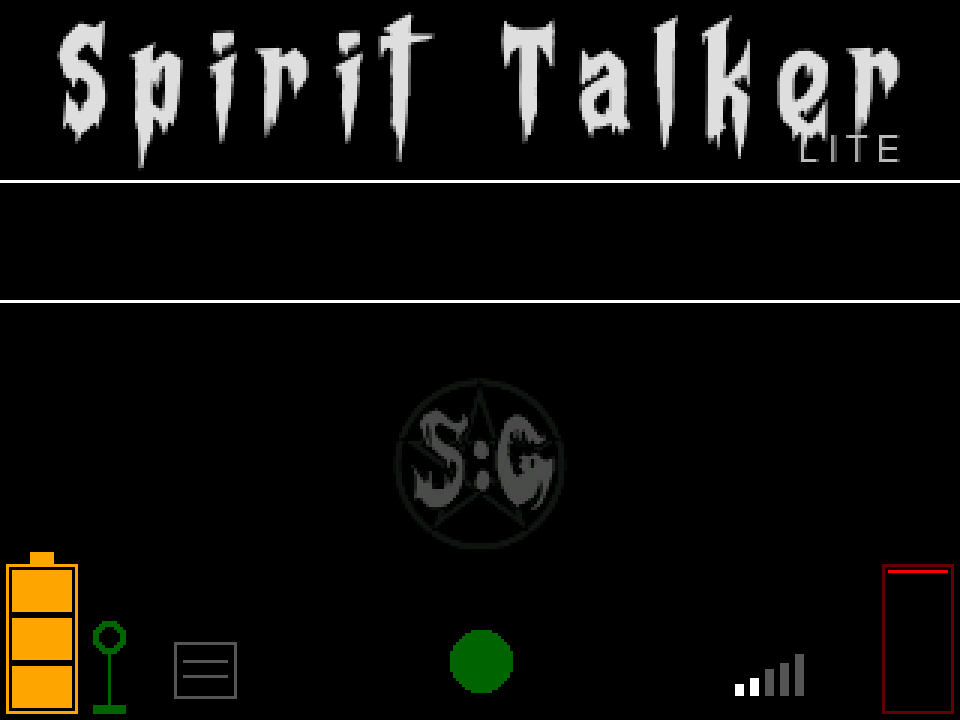
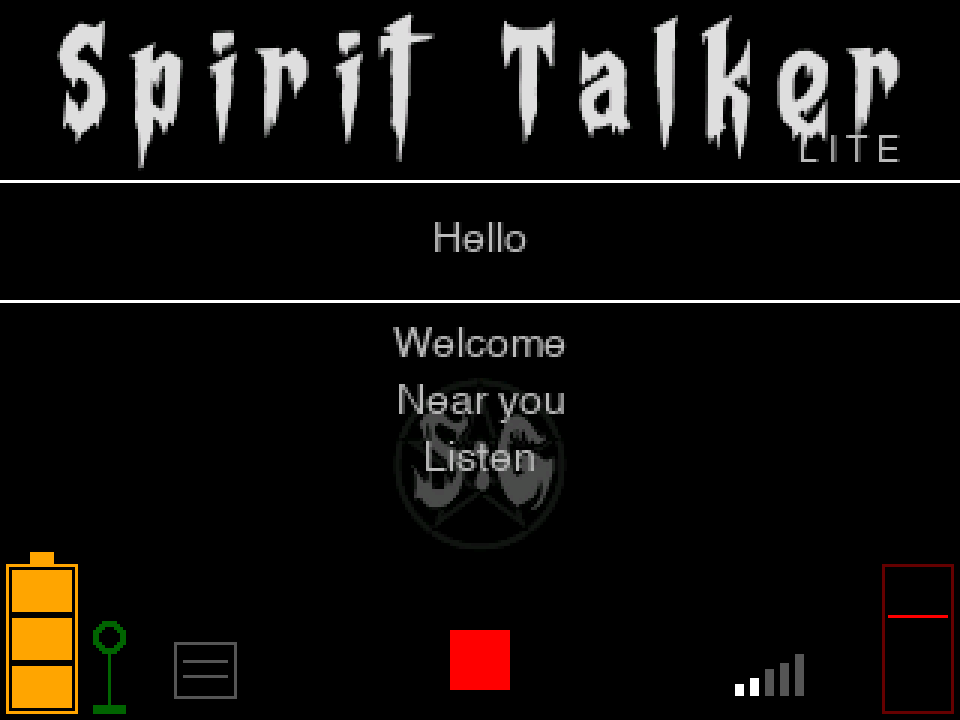
The screen keeps up to five recent responses, newest first. The moving bar on the right is an animation, not a numbered signal-strength meter. The battery icon at the lower left shows an approximate level; a red low segment indicates low charge and a blue outline indicates charging.
Change the speech volume
On the Spirit Talker word screen, press C repeatedly to cycle through the volume levels. After the highest level, it cycles to mute, then increases again. The volume bars show the selected level. Set the volume here before entering Yes / No, Emoji or Voice settings if you want to change their speech level. Volume is a live control and is not saved in the settings file.
Use the main menu
- Press A from the word screen, Yes / No, Emoji or Flappy Ghost to return to the menu.
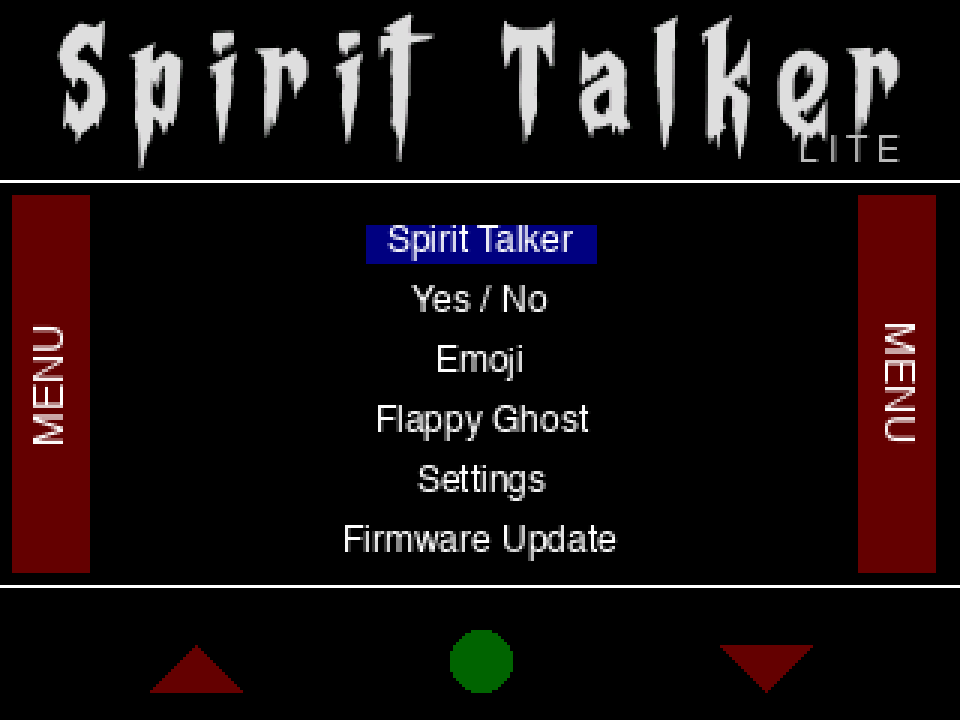
- Press A to move up or C to move down. The blue highlight shows the selected item.
- Press B to open it. The menu offers Spirit Talker, Yes / No, Emoji, Flappy Ghost, Settings and Firmware Update.
Use Yes / No mode
- Choose Yes / No from the main menu.
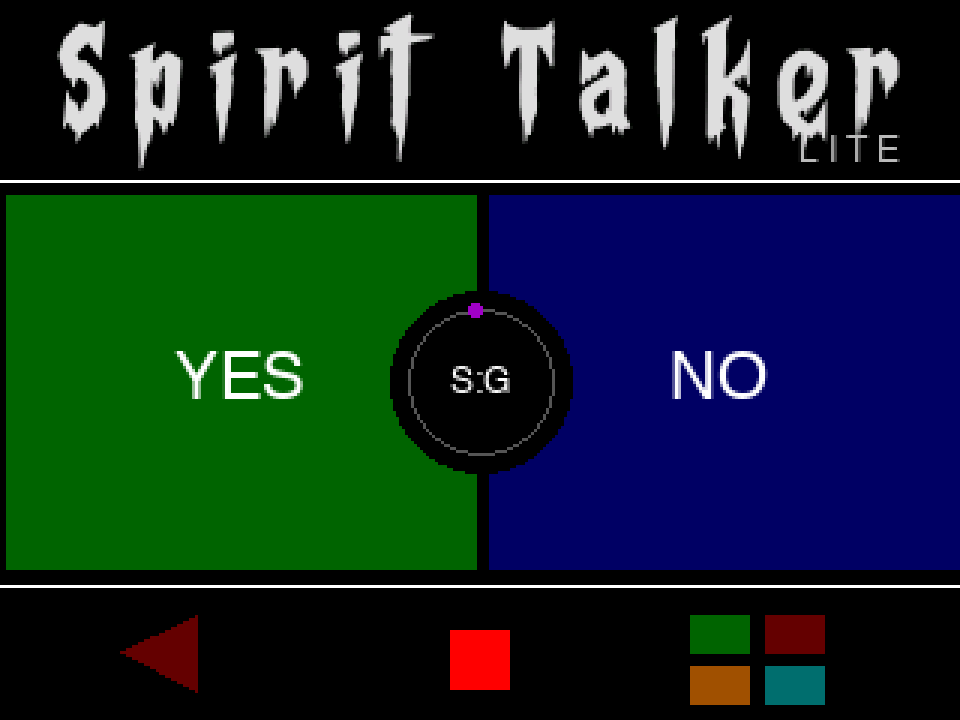
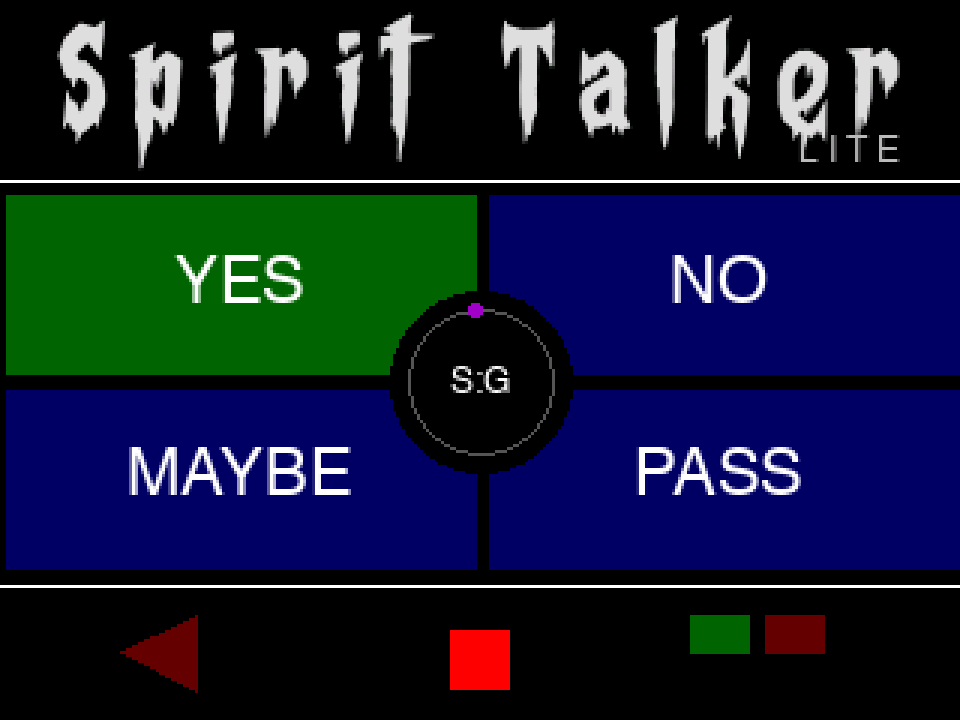
- Press C to choose the two-answer layout (YES / NO) or four-answer layout (YES / NO / MAYBE / PASS).
- Press B to start. The centre button symbol becomes a red square and the small indicator moves.
- Wait for an answer panel to highlight and its answer to be spoken. The device waits briefly, then continues automatically. Responses can take up to about two minutes.
- Press B to stop, or A to stop and return to the menu. If you press C to change layout while running, the run stops; press B to start again.
Use Emoji mode
- Choose Emoji from the main menu.
- Press B to start. Wait for the face to change expression; named expressions are spoken. The delay varies and can be up to about two minutes.
- Press B to stop and return the face to its neutral expression.
- Press A to stop and return to the menu. Button C has no assigned action in this version.
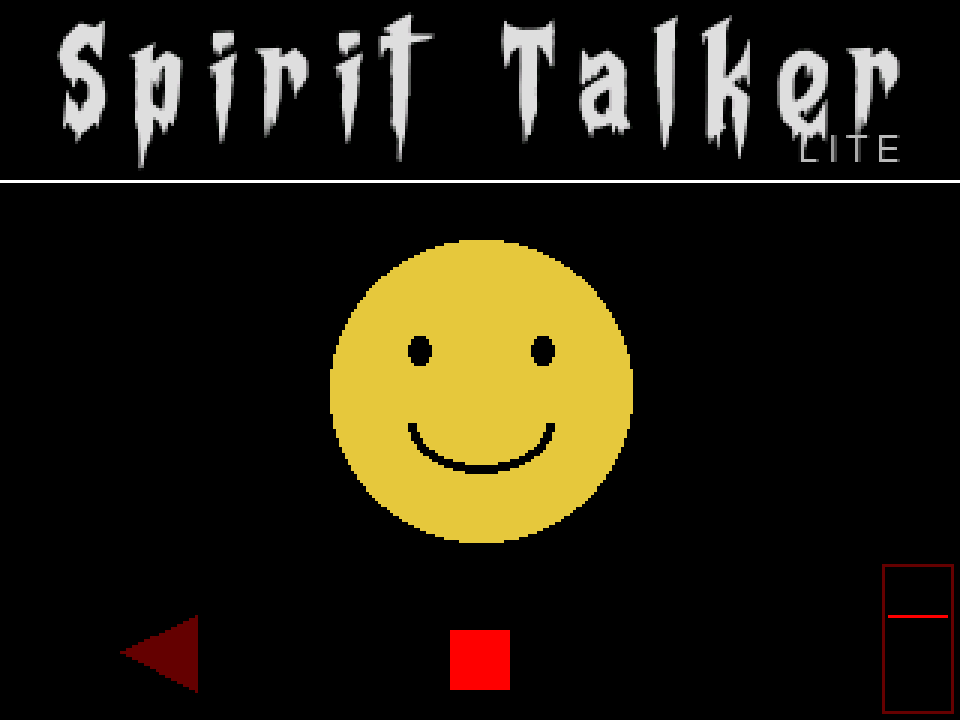
Expressions include Happy, Sad, Angry, Surprised, Tired, Skeptical, Scared, Laugh, Wink, Confused and Love, as well as a neutral face. A neutral result has no spoken emotion name. Blinking and breathing animations can still be visible when the mode is stopped.
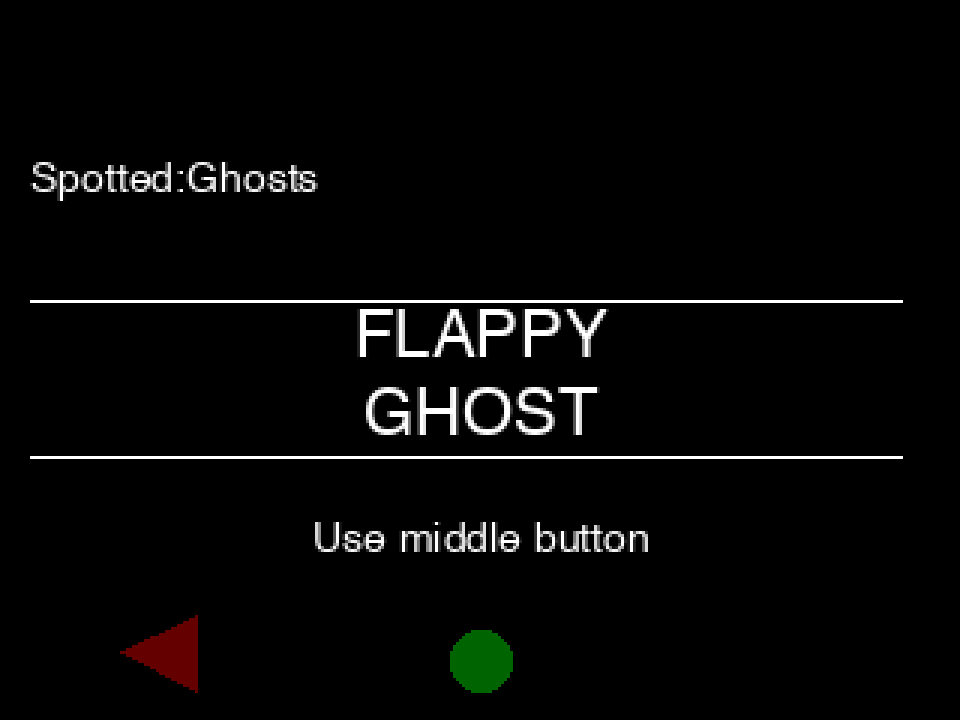
Play Flappy Ghost
- Choose Flappy Ghost from the main menu.
- Press B on the title screen to start.
- Press B during play to make the ghost flap upward and guide it through the gaps. Avoid the pipes and the ground.
- After GAME OVER, press B to play again, or A to return to the menu. A new high score is saved on the device. You can also press A during play to leave the game.
Choose a voice
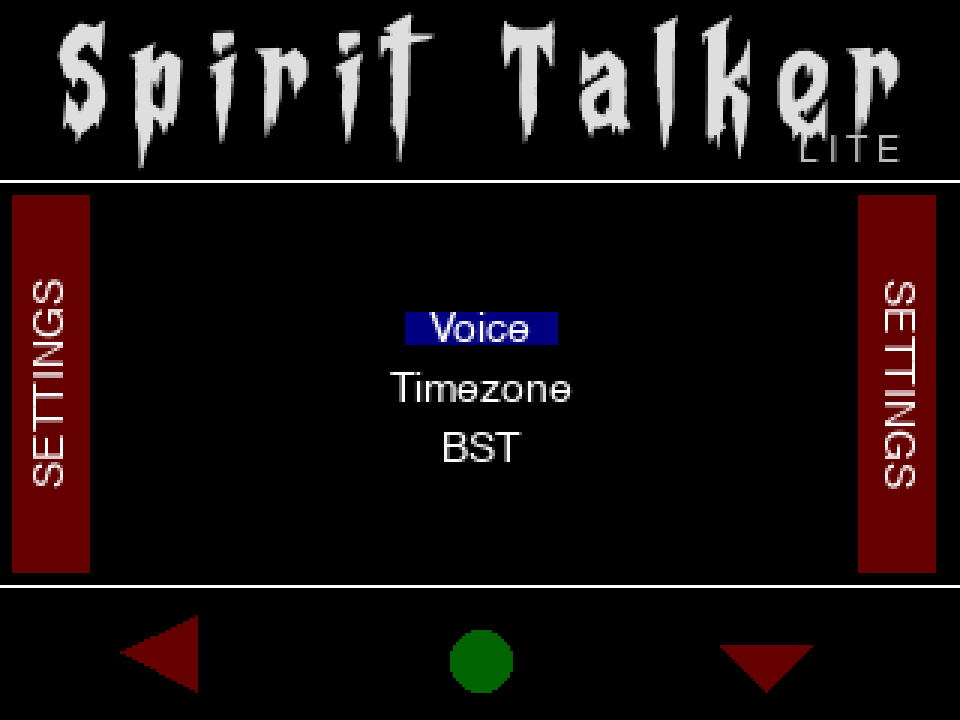
- Open Menu → Settings.
- Use C to highlight Voice and press B.
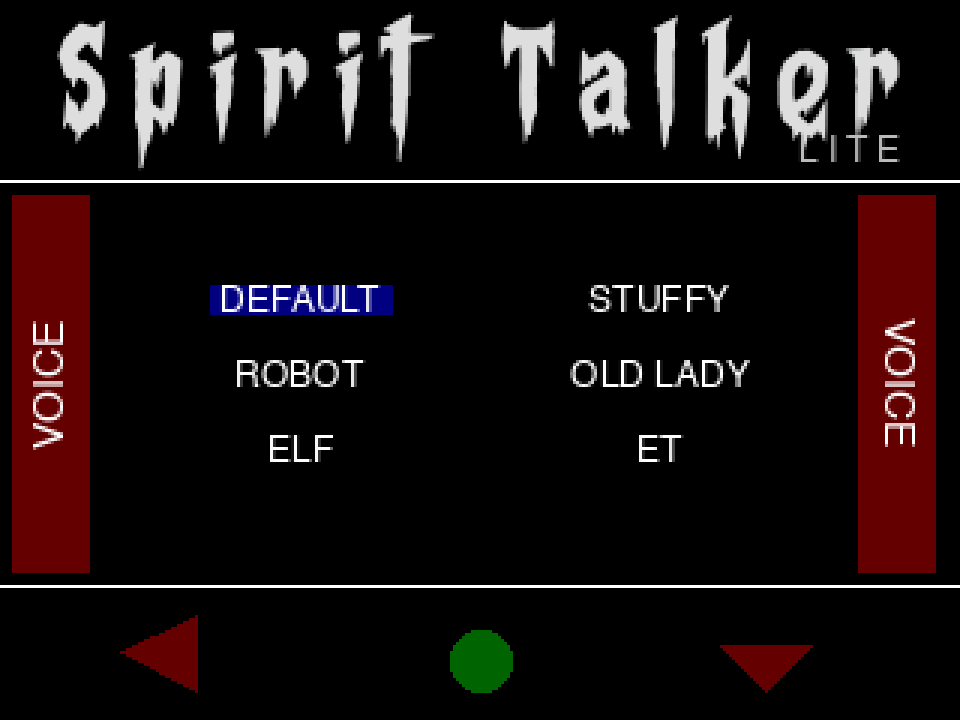
- Press C to cycle DEFAULT → ROBOT → ELF → STUFFY → OLD LADY → ET. A sample is spoken for each selection.
- Press B to save the current voice, or A to save and return to Settings.
Set the local time
The clock synchronises over the internet. Timezone and BST adjust local time, session filenames and word timestamps; they do not manually set the clock.
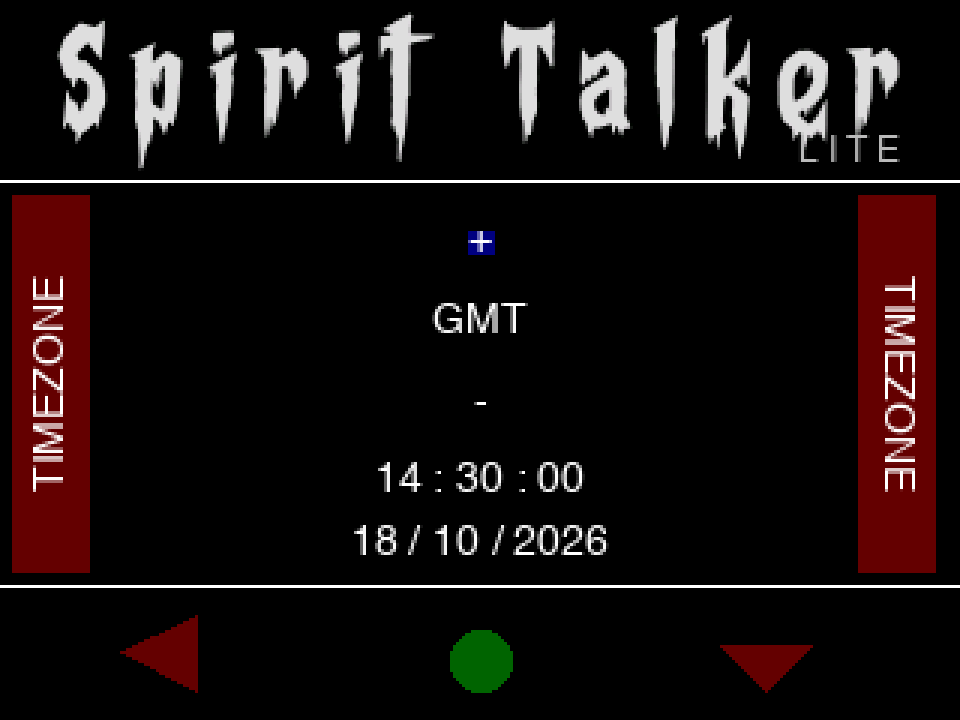
- Open Menu → Settings, highlight Timezone with C and press B.
- The + option is selected when you enter. Press B to increase the offset by 30 minutes. Press C to select – if you want B to decrease it instead.
- Repeat until the required offset appears. The available range is GMT -12:00 to GMT +14:00, wrapping around at either end. Each adjustment saves immediately.
- Use the clock and date below to check the result. If it says Time not synced, provide an internet connection and allow time to synchronise.
- Press A to save and return to Settings.
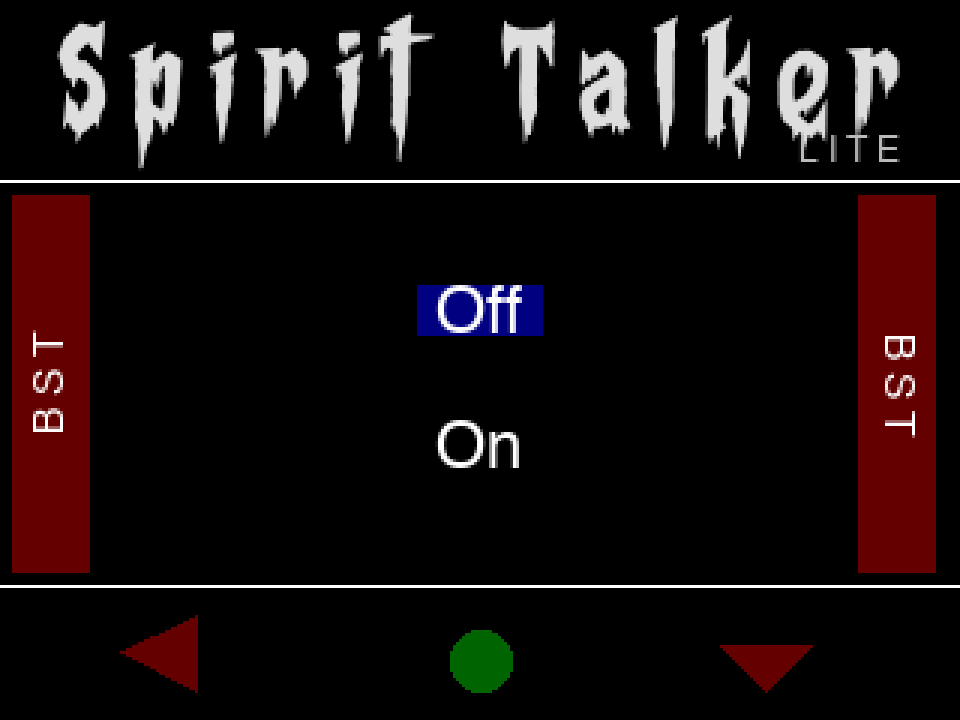
Switch BST on or off
- In Settings, highlight BST with C and press B.
- Press C to switch between Off and On. On adds one hour to your selected timezone. Each change saves immediately.
- Press A to save and return to Settings.
BST is manual; it does not change automatically with the seasons. For UK time, use GMT with BST Off in winter and GMT with BST On during British Summer Time.
Find saved word sessions
Spirit Talker automatically writes word responses to text files on the microSD card while a word session is running. You do not need to enable a Save option. These are text logs, not audio recordings or screenshots. Yes / No, Emoji and Flappy Ghost do not write word-session logs in this version.
- Stop the session with B or leave it with A, disconnect USB and switch the device off before removing the card.
- Open the card on a computer. If time was synchronised, look under
DateTimeFiles/YYYY-MM-DD/for a session file such as14-30-00.txt. Each entry includes its local time. - Without synchronised time, look in
NumberedFiles/for a numbered file such as1.txt. Entries contain the response without a timestamp. - Copy the files to your computer and open them with a text editor. Return the card before switching the device on again.
Each start creates a new session file. A run that produced no words is removed when stopped or left. Keep the supplied licence and configuration files on the card.
Connect to Wi-Fi
The main modes can run without the internet. Wi-Fi is used for clock synchronisation, firmware updates and ParaLink-Mesh. You can use a home network or a phone hotspot.
- With USB disconnected and the device off, open its microSD card on a computer.
- Open
wifisettings.txtin the root of the card with a plain-text editor. Create it if absent. - Enter the network name and password using the two field names shown below. Preserve any other existing settings.
- Save, eject the card, return it to the device and switch on. The device attempts the connection during startup.
WIFIName=YourNetworkName
WIFIPassword=YourNetworkPassword
Use a phone hotspot
- Enable the phone’s Wi-Fi hotspot or Personal Hotspot. Use a 2.4 GHz hotspot or enable the phone’s compatibility option if available.
- Put the hotspot name and password in the same two lines of
wifisettings.txt. These replace the previously saved network details. - Keep the hotspot on, return the card and restart Spirit Talker Lite. Keep the phone nearby.
- For internet clock synchronisation and firmware updates, the phone also needs working internet access. Firmware downloads can use mobile data.
Read the connection aerial
The small aerial appears near the lower-left edge of the Spirit Talker word screen, beside the battery icon. It is not shown on every screen.

No Wi-Fi connection
Red ring, stem and base: the device is not connected to Wi-Fi. Offline word sessions are still available.

Wi-Fi connected
Green ring, stem and base: Wi-Fi is connected. This alone does not confirm internet access or a ParaLink-Mesh connection.

ParaLink-Mesh connected
Blue ring with green stem and base: connected to Wi-Fi and ParaLink-Mesh.
Connect to ParaLink-Mesh

Find out more about ParaLink-Mesh, including installation and supported features.
With compatible ParaLink-Mesh running and reachable on the same local network, Spirit Talker Lite attempts to connect automatically. A phone hotspot can provide the local connection. The blue aerial ring on the word screen indicates a ParaLink-Mesh connection. Use the app page above for its touchscreen controls and supported remote features. If the connection is lost, the device can still be used with its physical buttons.
Update firmware
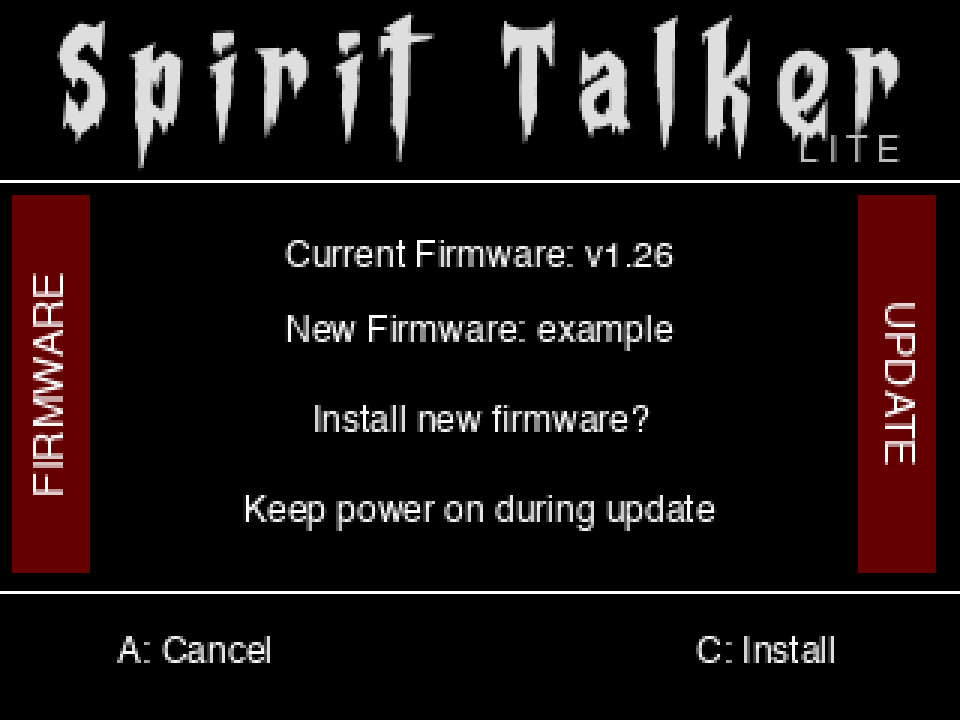
Charge the battery to at least 50% before starting. Connecting USB alone does not bypass the battery check in Spirit Talker Lite. Keep power connected throughout the installation.
- Stop the active mode and open Menu → Firmware Update.
- Wait for the version check. Network time may need up to about 15 seconds to synchronise.
- If the screen says Already up to date, press A to return to the menu.
- If Install new firmware? appears, release all buttons, then press C to install or A to cancel.
- Keep power on while the download percentage increases. After Installed!, the device restarts automatically.
- If a check fails or an update is blocked, press A to return to the menu, correct the cause, then reopen Firmware Update. There is no centre-button CHECK action in this version.
Troubleshooting
| What you see | What to do |
|---|---|
| No Licence / licence error | Switch off, check the supplied card and licence file, and restart. Contact the supplier if the error persists. |
| Black screen while charging | Press and release a front button to wake it. If the charging screen remains, press and release again to enter the app. The minute-long charging timeout does not switch the device off. |
| Device will not turn off on USB | Disconnect USB, then quickly press the red side power button twice. |
| No word or emotion yet | Check that B has started the mode and the centre symbol is a red stop square. Response timing varies; allow a little over two minutes for the first word response. |
| No speech | Return to Spirit Talker and press C to move away from mute. In Voice settings, choose a voice with C to hear its sample. |
| Word list vanished after stopping | Stopping clears the screen. Check the card’s text logs for recorded word sessions. |
| Yes / No stopped when changing layout | C changes the answer layout and stops the current run. Press B to restart. |
| Emoji does not respond to C | C has no assigned action in this version. B starts and stops Emoji. |
| Missing timestamps or Time not synced | Check internet access, allow synchronisation, and set Timezone and BST. Sessions can still be saved as numbered files without time. |
| No Wi-Fi or ParaLink connection | Check the Wi-Fi file, enable the correct network or hotspot, and restart. For ParaLink-Mesh, check the compatible app is running and reachable. |
| Update blocked / Battery below 50% | Charge to at least 50%, then leave and reopen Firmware Update. USB connection alone is not sufficient. |
| Clock sync failed; retry | Check internet access or try another configured network. Press A and reopen the updater. |
| Firmware download or install error | Record the message, check charge and internet, and retry from the menu. If it persists, send the message to the supplier. |
WaveTracer
Here’s the full WaveTracer code with **“Setting up the tripod and attachments”** added after “Get ... Read more
EchoTracer
Here’s the full EchoTracer code with **“Setting up the tripod and attachments”** added after “Get ... Read more